
Centralize Support Email With a Shared Inbox That Works
Centralize Support Email With a Shared Inbox That Works ! Hands connecting network cable for email centralization Centralize support email by moving every mailbox into a shared team inbox that connects directly to Gmail or Microsoft 365, then layer on assignment rules and automat

Centralize support email by moving every mailbox into a shared team inbox that connects directly to Gmail or Microsoft 365, then layer on assignment rules and automation so nothing falls through the cracks. The fastest path to proof is a 14-day pilot: connect one mailbox, turn on basic routing, invite your team, and track first-response time for a week. SendSync is built for exactly this kind of pilot, since it skips the DNS configuration that slows down heavier platforms like Genesys and works alongside Microsoft Outlook’s own inbox setup rather than replacing it.
Here’s the immediate action plan:
- Pick your busiest support mailbox (the one with the most duplicate replies or missed threads) and connect it first.
- Turn on assignment and collision detection so two agents never answer the same email twice.
- Set one automation rule for your highest-volume request type (password resets, order status, refund requests).
- Track first response time daily for the first seven days and compare it to your baseline.
Teams that skip straight to a unified inbox rather than juggling forwarding rules and shared logins tend to see fewer missed messages within the initial pilot period, largely because ownership becomes visible instead of assumed. That single change, visible ownership, is the difference between a support team that reacts to email chaos and one that runs a process.
Key Takeaways
Centralizing support email with a shared inbox that connects to Gmail or Microsoft 365 cuts duplicate replies and missed messages faster than any other rollout approach.
| Point | Details |
|---|---|
| Start with a pilot | Connect one mailbox, enable assignment, and measure first response time for one to two weeks. |
| Prioritize collision detection | This single feature prevents the duplicate-reply problem centralization is meant to solve. |
| Automate triage only at first | Tag and route messages automatically, but hold off on auto-replies until rules are proven. |
| Track a small KPI set | Watch first response time, backlog size, and SLA compliance weekly, not dozens of metrics. |
| Consider SendSync for a fast pilot | SendSync connects to Gmail and Microsoft 365 with no DNS setup and unlimited users, making it a practical first step for teams testing centralization. |
Table of Contents
- How Do You Centralize Support Email Across Your Team?
- Shared Inbox, Helpdesk, or Omnichannel Platform: Which Fits?
- What’s the Step-by-Step Checklist to Roll This Out?
- Which Features Should You Actually Require?
- What KPIs Prove the Centralization Worked?
- Which Mistakes Derail a Support Email Rollout?
- How Does SendSync Solve This Without the Setup Headache?
- What Exactly Counts as a Centralized Support Email Setup?
- How Long Does Migration Take and What Does It Cost?
- How Do You Choose the Best Solution for Your Team?
- How Do the Top Approaches Compare in Practice?
- What Security and Compliance Issues Should You Watch For?
- When Should You Choose a Shared Inbox Over a Full Helpdesk?
- Ready to Stop Losing Customer Emails?
- Frequently Asked Questions
- Sources
How Do You Centralize Support Email Across Your Team?
Centralizing support email means routing every incoming message, whether it lands in support@, help@, or a founder’s personal inbox, into one shared workspace where the whole team can see, claim, and respond to it. Instead of five people checking five inboxes and hoping nobody double-replies, everyone works from a single pane of glass with visible ownership on every thread.
The operational payoff shows up fast. Teams typically see three things improve almost immediately after centralizing: response times drop because messages get claimed instead of sitting in a shared login nobody checks first, duplicate replies disappear because collision detection flags who’s already working a thread, and backlog becomes visible instead of hidden across inboxes. A support manager can finally see the whole queue instead of guessing at it.
Consolidation on its own is only half the win. According to Genesys, the biggest gains come when consolidation is paired with routing rules and reporting that guide which messages agents tackle first, not just where those messages land. A single inbox that still requires someone to manually sort priority is not much better than five inboxes.
Picture a five-person support team running on a shared Gmail login before centralizing. Two agents reply to the same customer within the hour because neither can see the other typing. After moving to a shared inbox with assignment rules, that collision disappears, and the team reports handling roughly the same workload with noticeably less back-and-forth internally about “who’s got this one.” That’s not a magic productivity multiplier. It’s just the natural result of making ownership visible.
Pro Tip: Before you centralize anything, spend one day tagging your current email volume by request type. It tells you exactly where automation will save the most time later.
Shared Inbox, Helpdesk, or Omnichannel Platform: Which Fits?
Three categories of tools solve this problem, and picking the wrong one for your team size is the most common early mistake support managers make.
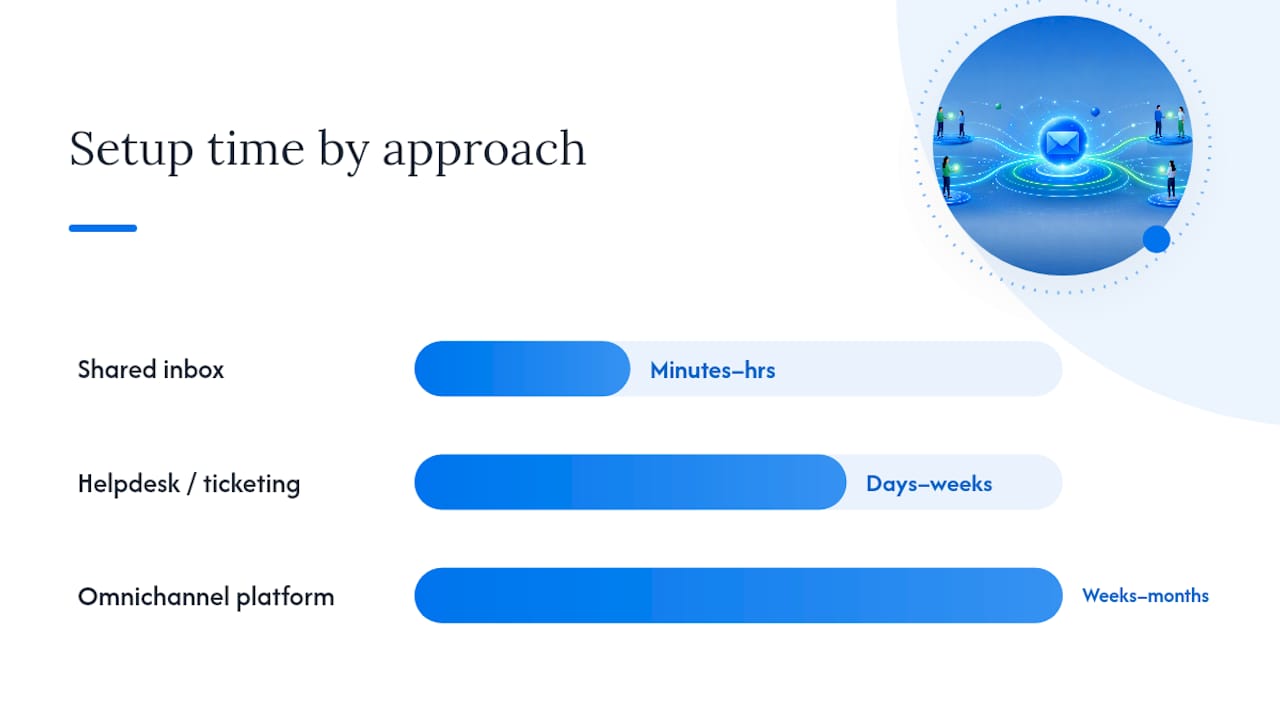
A shared inbox connects directly to your existing Gmail or Microsoft 365 mailboxes and adds assignment, internal notes, and light automation on top. Setup usually takes minutes rather than days, since there’s no DNS reconfiguration or mail server migration involved. This fits small to mid-size teams who need clarity and speed more than deep reporting.
A helpdesk or ticketing system converts every email into a formal ticket with statuses, SLAs, and structured workflows. It fits teams that have outgrown simple assignment and need enforceable service-level tracking, but it typically demands more setup time and often introduces per-seat pricing that scales awkwardly as headcount grows.
An omnichannel or contact-center platform goes further still, unifying email with chat, phone, and social channels into one interface. Genesys notes that these platforms can automatically capture, classify, and route email using business rules and customer data, with routing engines that account for agent skills, language, and workload. That power comes with real implementation weight, better suited to larger support organizations juggling multiple channels than to a lean team just trying to stop losing emails.
| Approach | Best For | Setup Time | Automation Depth | Reporting |
|---|---|---|---|---|
| Shared inbox | Small to mid-size teams | Minutes to hours | Basic rules, tagging, triage | Lightweight dashboards |
| Helpdesk / ticketing | Scaling teams with SLA requirements | Days to weeks | Workflow automation, escalations | Detailed ticket analytics |
| Omnichannel platform | Enterprise, multi-channel support orgs | Weeks to months | Advanced skills-based routing | Full cross-channel analytics |
If you’re on Microsoft 365, know that Outlook already offers a consolidated inbox view that aggregates multiple accounts into one screen. It’s a reasonable stopgap for a two-person team, but it lacks assignment, collision detection, or automation, which is exactly where a dedicated shared inbox tool picks up the slack.
What’s the Step-by-Step Checklist to Roll This Out?
Skipping steps here is how pilots stall. Follow this order and you’ll have a working proof of concept before your next monthly review.
- Inventory your mailboxes. List every address customers use to reach you (support@, help@, billing@, and any personal inboxes acting as shadow support channels).
- Identify stakeholders and current SLAs. Know who owns which request types today, even informally, before you rebuild the process.
- Connect one or two mailboxes to your shared inbox tool. Start narrow. Don’t migrate everything on day one.
- Enable assignment and collision detection immediately. This is the single highest-value setting in the entire rollout.
- Build one or two automation rules for level-one triage. Auto-tag password resets or order-status questions before you attempt anything more complex.
- Run the pilot for a short trial period. Measure first response time, backlog size, and duplicate-reply incidents daily.
- Expand routing rules and connect remaining mailboxes. Only after the pilot proves out.
- Train the full team on ownership norms and internal note etiquette. This phase usually takes several weeks depending on team size and how many mailboxes you’re consolidating.
Cost considerations vary by licensing model. Traditional helpdesk platforms often charge per seat, which punishes you for growing your team or adding seasonal support staff. SendSync’s model of unlimited users with no per-seat fees changes that math entirely, since a company can add five agents during a busy season without recalculating its software budget. For pilot budgeting, plan for a trial period covering your test mailboxes, then a modest monthly subscription once you commit to full rollout. The real cost savings usually show up in reduced agent hours spent hunting for context on a thread, not in the subscription line item itself.
Pro Tip: Run your pilot on your messiest mailbox, not your cleanest one. If centralization fixes your worst inbox, it’ll handle the easy ones without a second thought.
Which Features Should You Actually Require?
Not every feature on a vendor’s homepage matters for your rollout. Here’s what to insist on and what to test before you sign anything.
- Unified inbox view that pulls every connected mailbox into one screen without manual forwarding rules.
- Assignment and ownership tools so every thread has a named owner the moment it’s claimed.
- Collision detection that warns agents when a teammate is already drafting a reply.
- Automation rules for tagging, routing, and level-one triage based on keywords or sender.
- Searchable conversation history so agents can pull up a customer’s full thread history in seconds.
- Saved views that let managers filter by status, tag, or assignee without rebuilding a query each time.
- Internal notes for private team context that never leaks into a customer-facing reply.
- Reporting dashboards covering response time, resolution time, and volume by agent or tag.
- Access control and encryption to keep sensitive customer data protected.
During a trial, actually test the assign and reassign flow with a live thread, not a demo account. Send a test email to your connected mailbox, watch how automation tags it, and try routing it across two team members to see how collision detection behaves in real time. If Gmail and Microsoft 365 connectivity both work cleanly without IT tickets, that’s a strong signal the tool will scale with you. For an initial rollout, treat assignment, collision detection, and basic automation as non-negotiable; treat advanced reporting and skills-based routing as nice-to-haves you can add later.
What KPIs Prove the Centralization Worked?
Track a small set of numbers consistently rather than drowning your dashboard in vanity metrics.
Primary KPIs to watch weekly:
- First response time — how quickly a customer gets an initial reply.
- Average resolution time — how long a thread stays open start to finish.
- Reopened threads — a proxy for whether your first answer actually solved the problem.
- Email backlog size — total unanswered threads at any given moment.
- Agent throughput — threads closed per agent per day.
- SLA compliance rate — percentage of threads answered within your target window.
Secondary KPIs worth checking monthly:
- Automation hit rate — the percentage of incoming emails correctly tagged or routed without manual correction.
- Duplicate reply reduction — a direct measure of whether collision detection is doing its job.
- CSAT for email interactions — customer satisfaction scores tied specifically to email threads, not overall support scores.
For a pilot, aim to see first response time improve within the initial pilot period and backlog stabilize rather than grow. In steady state, most teams target high SLA compliance rates and treat any rise in reopened threads as a signal that agents are closing tickets too fast rather than solving them. Set your 30 to 90 day goals around trend direction, not perfection. A backlog that’s shrinking week over week is a better sign than a single day’s snapshot.
Which Mistakes Derail a Support Email Rollout?
Most failed rollouts don’t fail because the tool was wrong. They fail because the process around the tool was rushed.
- Migrating every mailbox on day one. This overwhelms your team and makes it impossible to isolate what’s working. Fix: pilot with one or two mailboxes first.
- Skipping clear ownership rules. If nobody knows who’s responsible for a tag or category, threads still slip through even in a centralized system. Fix: assign a default owner for every tag before launch.
- Ignoring collision detection. Teams that disable it “to simplify things” often see the exact duplicate-reply problem centralization was supposed to solve. Fix: keep it on from day one, even during the pilot.
- Insufficient training on internal notes. Agents who don’t understand the difference between an internal note and a customer reply will eventually send one to the wrong audience. Fix: run a fifteen-minute training before granting access.
- Over-automating without human review. Auto-replies that misfire on an angry customer’s message do real damage to trust. Fix: start with automation that tags and routes only, and add auto-response content later once you trust the rules.
A team inbox differs from a personal inbox in ways that aren’t obvious until you’re mid-rollout, particularly around how ownership and internal visibility work. Reviewing that difference with your team before launch saves a lot of confused Slack messages in week one.
How Does SendSync Solve This Without the Setup Headache?
SendSync connects to your existing Gmail or Microsoft 365 mailboxes with no DNS changes, which means a team can go from signup to a working shared inbox in minutes rather than coordinating with IT for days. It includes assignment, collision detection, automation for triage, internal notes, saved views, and dashboards, essentially the full feature checklist from the section above, without the licensing complexity of per-seat helpdesk pricing.
Getting started looks like this:
- Create a SendSync account and start your 14-day trial.
- Connect one mailbox (Gmail or Microsoft 365, no DNS work required).
- Invite your team members at no extra per-seat cost, since pricing doesn’t scale with headcount.
- Set two or three basic automation rules for your highest-volume request types.
- Turn on assignment and collision detection before your first real customer email arrives.
The commercial model matters more than it sounds like it should. Unlimited users with no per-seat fees means a support manager can add three seasonal agents in December without recalculating the software budget, something that’s genuinely painful under traditional per-seat helpdesk pricing. Combined with a setup process that skips DNS entirely, it’s a low-friction way to prove the value of centralization before committing to a bigger platform overhaul.
Pro Tip: Invite one skeptical team member to the pilot on day one. If they stop checking their old inbox within a week, you’ve got real proof the switch works.
What Exactly Counts as a Centralized Support Email Setup?
A centralized support email setup is any configuration where multiple inboxes, addresses, or communication channels feed into one shared workspace that your whole team can access, rather than each person or mailbox operating in isolation. It’s not just about consolidation for its own sake. It’s about making sure every incoming message has a visible owner, a status, and a history that any team member can pull up instantly.
This differs from simply forwarding emails to one address or sharing a single login across the team. A true centralized setup preserves individual accountability (who’s handling this thread) while giving managers visibility into the whole queue. Some teams confuse “centralized” with “one inbox for everyone to check,” but without assignment and collision detection, that’s just a shared login with extra steps and the same duplicate-reply risk as before.
How Long Does Migration Take and What Does It Cost?
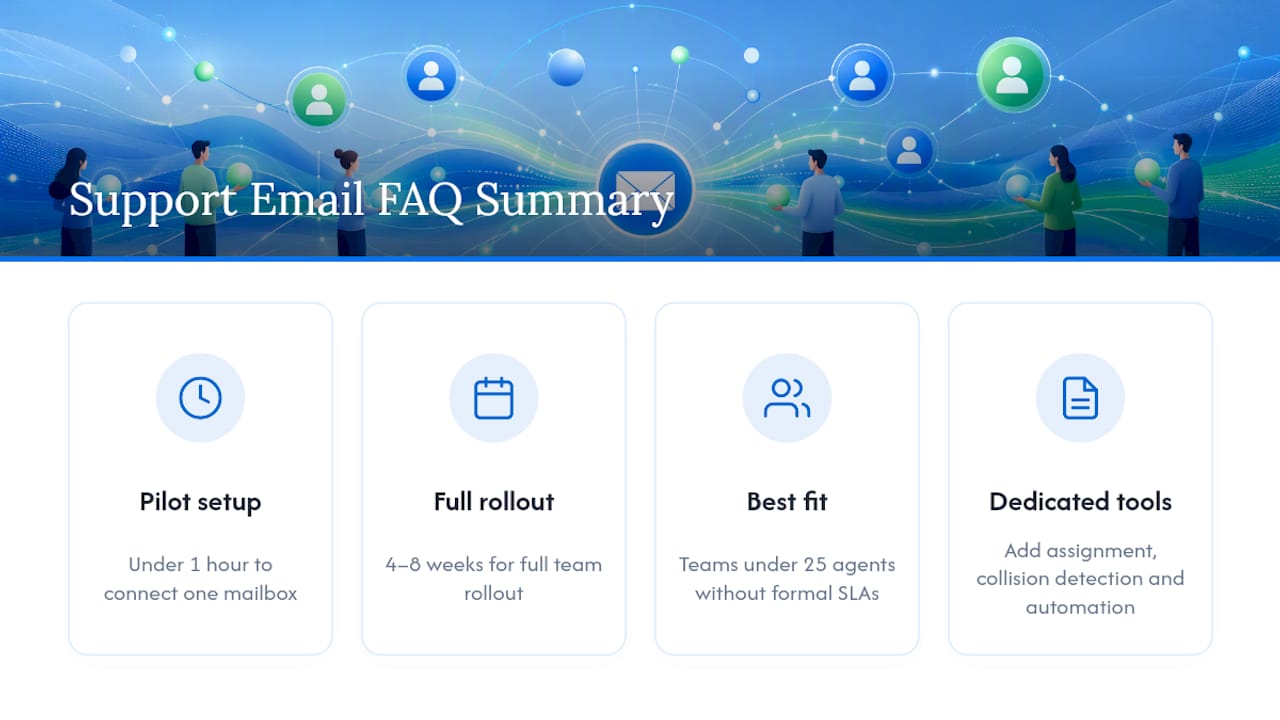
Migration timelines depend almost entirely on how many mailboxes you’re consolidating and how much historical data you want preserved. A single-mailbox pilot connecting to a shared inbox tool typically takes under an hour for the technical setup, since there’s no DNS propagation to wait on when using a Gmail or Microsoft 365 integration. Full team rollout, including training and expanding to every support mailbox, usually runs four to eight weeks for a mid-size team.
Cost considerations split into two buckets: the software subscription and the internal time cost of change management. Per-seat helpdesk platforms can get expensive fast as a team grows, since every new hire adds to the monthly bill. Tools with unlimited-user pricing avoid that scaling problem entirely, which matters most for support teams that flex staffing seasonally. The internal cost, training time and the adjustment period as agents learn new ownership norms, is often underestimated. Budget at least one dedicated onboarding session per mailbox you connect.
How Do You Choose the Best Solution for Your Team?
Evaluate candidates against five criteria before you commit to a full rollout.
Setup friction comes first. If a platform requires DNS changes, MX record updates, or a multi-week onboarding call before your team can send a single test email, that’s a red flag for teams that need to move fast. Pricing structure matters just as much. Per-seat models penalize growth, while unlimited-user pricing keeps your cost predictable as your team scales up or down seasonally.
Automation depth should match your actual volume, not the vendor’s biggest customer’s volume. A team handling 200 emails a day doesn’t need skills-based routing across ten languages. Integration quality with your existing Gmail or Microsoft 365 setup should be seamless enough that agents don’t need a manual to understand it. And reporting clarity should let a manager answer “how are we doing this week” in under thirty seconds, not require exporting data to a spreadsheet first.
How Do the Top Approaches Compare in Practice?
A shared inbox tool like SendSync wins on setup speed and pricing predictability, connecting to Gmail or Microsoft 365 in minutes with unlimited users and no DNS work. Its trade-off is lighter cross-channel capability, since it’s purpose-built for email rather than phone or chat.
A full helpdesk platform offers more structured SLA enforcement and ticket-status workflows, which fits teams with formal service contracts. The trade-off is longer setup time and per-seat pricing that adds up as the team grows.
An omnichannel contact-center platform like the capabilities Genesys describes offers the deepest routing and analytics, with skills-based and workload-based distribution across every channel a customer might use. That power comes at the cost of implementation complexity better suited to large support organizations than a lean team of five trying to stop losing emails in a shared login. For most support teams starting this journey, the practical starting point is the shared inbox category, with room to grow into a helpdesk or omnichannel platform if volume and channel complexity demand it later.
What Security and Compliance Issues Should You Watch For?
Centralizing support email concentrates customer data in one place, which raises the stakes on access control. Every team member with inbox access can potentially see customer names, order details, and sometimes payment information embedded in email threads, so role-based permissions matter more once you centralize than they did when data was scattered across personal inboxes.
Look for encryption in transit and at rest, clear access logs showing who viewed or edited a thread, and the ability to revoke access instantly when someone leaves the team. If your customers are in the European Union, GDPR requirements around data processing agreements and the right to erasure apply to any tool storing their email content, so confirm your vendor’s data handling policies before connecting a mailbox that includes EU customer data. This is general guidance, not legal advice. Confirm your specific compliance obligations with your legal team or a qualified advisor before finalizing a vendor.
A tool that integrates directly with Gmail or Microsoft 365 inherits some of the security posture of those platforms already, since authentication typically runs through OAuth rather than shared passwords. That’s a meaningful advantage over legacy shared-login setups where everyone uses the same credentials and nobody can trace who did what.
When Should You Choose a Shared Inbox Over a Full Helpdesk?
The honest answer: most teams overthink this decision and end up buying more platform than they need. If your team is under twenty-five people and your biggest problem is missed emails and duplicate replies, a shared inbox solves that problem completely without asking you to redesign your workflow around tickets and statuses.
Full helpdesk platforms earn their complexity when you have contractual SLAs that require formal tracking, or when your support volume has grown to the point where you need structured escalation paths across multiple tiers of agents. Omnichannel platforms make sense only when email is genuinely one of several channels you’re managing at real volume, not a “nice to have someday” feature.
Here’s a rule of thumb worth internalizing: if you can describe your current support process in one sentence (“we get emails, someone answers them, sometimes two people answer the same one”), you need a shared inbox, not a helpdesk. If your process already involves the words “escalation tier” or “SLA breach penalty,” you’ve probably outgrown a shared inbox and should be evaluating ticketing platforms instead. Don’t buy complexity you don’t need yet. You can always migrate up once volume demands it.
Ready to Stop Losing Customer Emails?
Sendsync gets your team off scattered inboxes and onto one shared view in minutes, not weeks, because there’s no DNS setup standing between you and your first pilot. Compare that to a traditional helpdesk migration, which can eat a week of IT time before your first agent even logs in, and the appeal of a same-day setup becomes obvious.

Every plan includes unlimited users with no per-seat fees, so adding three agents during a busy season doesn’t mean renegotiating your subscription. You connect your Gmail or Microsoft 365 mailbox, invite your team, and turn on assignment and automation the same afternoon. Start your 14-day trial with SendSync today and measure your first-response time improvement before the week is out.
Frequently Asked Questions
What does it mean to centralize support email? It means routing every support address your customers use, support@, help@, billing@, or any others, into one shared workspace where your team can see, claim, and respond to every message with visible ownership and history.
How long does it take to centralize support email? A basic pilot connecting one mailbox typically takes under an hour to set up with a shared inbox tool that integrates directly with Gmail or Microsoft 365. Full team rollout across all mailboxes usually takes four to eight weeks depending on team size and how much training is needed.
Is a shared inbox enough, or do I need a full helpdesk? For teams under twenty-five agents without formal SLA contracts, a shared inbox usually covers the need completely. Teams with contractual service-level requirements or high channel complexity typically need a full helpdesk or omnichannel platform instead.
What’s the difference between consolidating with Outlook and using a dedicated shared inbox tool? Outlook’s unified inbox view aggregates multiple accounts into one screen but lacks assignment, collision detection, or automation. A dedicated shared inbox tool adds those collaborative features on top of the consolidated view.
Does centralizing support email require IT involvement? Not necessarily. Tools that connect via Gmail or Microsoft 365 without requiring DNS changes let a support manager set up a pilot without submitting an IT ticket, which is one of the main reasons teams choose this route over a full helpdesk migration.
Sources
- Customer Service Email Management Software | Genesys
- How do I consolidate/unify my email accounts in my inbox? - Microsoft Support