
Stop Misrouting Support Email: Auto Assign Emails with 1 Rule, 3 Tests
Stop Misrouting Support Email: Auto Assign Emails with 1 Rule, 3 Tests ! Support specialist organizing routed email workflow Four methods reliably auto-assign incoming emails: inbox rules, email-to-ticket processors, automation platforms built on webhooks, and custom scripts.

Four methods reliably auto-assign incoming emails: inbox rules, email-to-ticket processors, automation platforms built on webhooks, and custom scripts. Inbox rules work for simple, predictable routing; processors add tracking and priority; webhooks pull in outside data like CRM tags; scripts handle whatever the other three can’t. If you want the setup done for you, some shared inbox solutions handle rule-based and capacity-aware assignment out of the box. Either way, start small: build one rule, run three test emails through it, and confirm it lands where it should before you build the next one.
TL;DR:
- Automated email assignment works best when starting with a simple, specific rule and thoroughly testing it with real samples before adding more.
- Rule evaluation order is critical, as most systems process rules top-down and stop at the first match, so specific rules should come before catch-alls.
- Using fallback owners and clear naming conventions helps prevent misrouting and facilitates quick troubleshooting of rule issues.
- Pilot testing automation on high-volume, low-ambiguity categories first can improve efficiency without risking important or sensitive tickets.
- Many platforms support rule-based and capacity-aware routing without complex DNS setup, enabling quick and transparent implementation.
Table of Contents
- What Are the Main Ways to Auto Assign Emails?
- How Do You Set Up Auto-Assignment Rules Step by Step?
- How Do You Keep Auto-Assigned Emails From Misrouting?
- Should You Automate Every Category or Keep Some Manual?
- How We Approach Auto-Assignment in Practice
- Why Most Teams Overbuild Their First Auto-Assignment System
- Get Auto-Assignment Running Without the DNS Headaches
- Sources
What Are the Main Ways to Auto Assign Emails?
Every automated email distribution method boils down to the same logic: a condition triggers an action. The differences show up in how much setup they need and how much they can see.
Inbox rules are the simplest form of email routing automation. You set a condition (sender, subject line, or which address the message hit) and pair it with an action (assign to a person or team). Setup takes minutes and requires no technical background. The tradeoff: inbox rules only see what’s in the header and subject, so they struggle with anything that needs context from outside the email itself.
Email-to-ticket processors sit a level up. Instead of just moving a message, they convert it into a ticket, attach a priority, and then apply an assignment strategy. Workestra’s documentation describes exactly this pattern: a processor checks conditions like subject content, sets a default priority and ticket type, then routes it. This matters if you need SLA tracking or a paper trail on who owns what.
Automation platforms using webhooks (think Zapier-style flows or native webhook integrations) go further still. They can pull in signals a plain inbox rule never sees, like a CRM tag showing the sender is an enterprise customer or a past support history. Good for teams that need enrichment before routing, overkill for teams that just need “billing emails go to Dana.”
Scripts and macros give you full custom logic, but somebody has to maintain them. If a routing rule changes, code changes with it. Reserve this for edge cases the other three can’t handle.
One more decision cuts across all four: should a matched email go to one fixed owner, or should it enter a capacity-aware or round-robin pool? Single-owner assignment works for specialized categories (a specific vendor account, a legal escalation). Round-robin or load-balanced assignment works better for high-volume, interchangeable categories like general billing questions, where you just need the next available person.
How Do You Set Up Auto-Assignment Rules Step by Step?
Start with one rule before you build a system. Here’s the pattern that holds up across Gmail, Outlook/Exchange, and most dedicated team inbox tools:
- Open the rule or filter builder in your platform.
- Set the condition: subject contains a keyword, sender matches an address, or the message hit a specific inbox alias.
- Set the action: assign to a named person or a team.
- Send a sample email that matches the condition and confirm it lands correctly.
- Send a sample email that should not match and confirm it doesn’t get caught.
That fifth step gets skipped constantly, and it’s the one that saves you from misrouted tickets later.
Rule order matters more than most people realize. Most systems evaluate rules top to bottom and stop at the first match, so a broad catch-all rule sitting above a specific one will swallow messages that needed special handling. LeadSimple’s documentation on inbox assignment rules recommends stacking specific rules first and pushing catch-alls to the bottom, then testing with sample messages to confirm the order behaves the way you expect.
A related pattern worth building in: auto-assign on first reply. Instead of forcing every thread into a rule, you let the first person to respond automatically become the owner. Zoho TeamInbox documents this approach, noting it preserves existing ownership if a thread is already assigned, while catching anything that slipped through your rules unassigned. It’s a good safety net layered on top of rule-based routing, not a replacement for it.
If you’re running a full processor pipeline, the shape looks like this: an incoming email hits a webhook, a rule checks the subject or sender, a ticket gets created with a default priority and type, and then your assignment strategy (single owner or round-robin) takes over. Workestra’s processor model follows exactly this chain, and it’s worth mapping out on paper before you build it in any tool.
Pro Tip: Build a dedicated test inbox before touching production rules. Send five or six sample emails representing your real categories, run them through the new rule set, and check every result before you flip it live for the whole team.
How Do You Keep Auto-Assigned Emails From Misrouting?
Most misrouting problems trace back to two things: rule order and vague conditions. Fix those and you fix most of what goes wrong.
- Give every rule a clear name that states its condition and its purpose, not just a number. It turns an audit from a guessing game into a five-minute read.
- Write conditions with enough specificity that they don’t overlap. If two rules could both match the same email, one of them needs a tighter condition or an explicit priority order.
- Tag test messages distinctly (something like “TEST” in the subject) so they never get confused with a real customer email during a rule change.
- Set up an alert for threads that sit unassigned past a set window, and put an SLA on how fast someone manually picks them up.
- If a rule starts misbehaving, disable it rather than trying to patch it live. Diagnose in the test inbox, fix it there, then re-enable.
- Assign a fallback owner for anything that matches nothing. An email with no home is worse than one routed to the wrong (but responsive) person.
Response time is where all of this actually pays off. Zoho’s guidance on shared inbox assignment points to auto-assign-on-first-reply specifically as a way to stop threads from sitting untouched while people assume someone else has it. That gap, an email nobody claims because everyone assumes it’s covered, is one of the most common failure points in shared inboxes, and it’s also one of the easiest to close with a fallback rule.
Keeping a naming convention and a rollback plan on hand also makes fairness easier to check. If one teammate keeps ending up with a disproportionate share of a category, you can trace it to a specific rule instead of debugging the whole system.
Should You Automate Every Category or Keep Some Manual?
Automate the categories that are high-volume and low in ambiguity, like password resets, billing questions, and order status. Keep anything sensitive, legally touchy, or genuinely complex on a manual queue where a person decides who picks it up.
Before rolling rules out across the whole inbox, run a short pilot:
- Limit it to one or two rules and one to two weeks.
- Track time-to-first-assignment and the percentage of emails still unassigned after 30 minutes.
- Compare those numbers against your current manual baseline before the pilot started.
- Only expand the rule set once the pilot numbers hold steady, not just once, but across a few different days and volume patterns.
If the pilot beats your manual baseline on both metrics, extend the same rule pattern to the next category. If it doesn’t, the fix is almost always narrower conditions, not more automation.
How We Approach Auto-Assignment in Practice
Some shared inbox platforms connect Gmail and Microsoft 365 quickly, without DNS changes, and support both rule-based and capacity-aware assignment with routing dashboards to watch outcomes in real time.
A workable starting setup looks like this:
- Turn on auto-assign-on-first-reply as your safety net.
- Build one rule for billing, one for refunds, each pointing to a specific owner or team.
- Assign a fallback owner for anything that matches neither.
- Check the dashboard weekly for unassigned-thread counts and per-person load.
Why Most Teams Overbuild Their First Auto-Assignment System
The biggest mistake I see teams make with automated email distribution isn’t technical, it’s scope. They try to write twelve rules on day one, covering every category they can imagine, and then spend the next month untangling which rule actually fired and why. The research on rule ordering backs this up: LeadSimple’s own documentation exists precisely because first-match-wins logic punishes broad thinking. Start narrow.
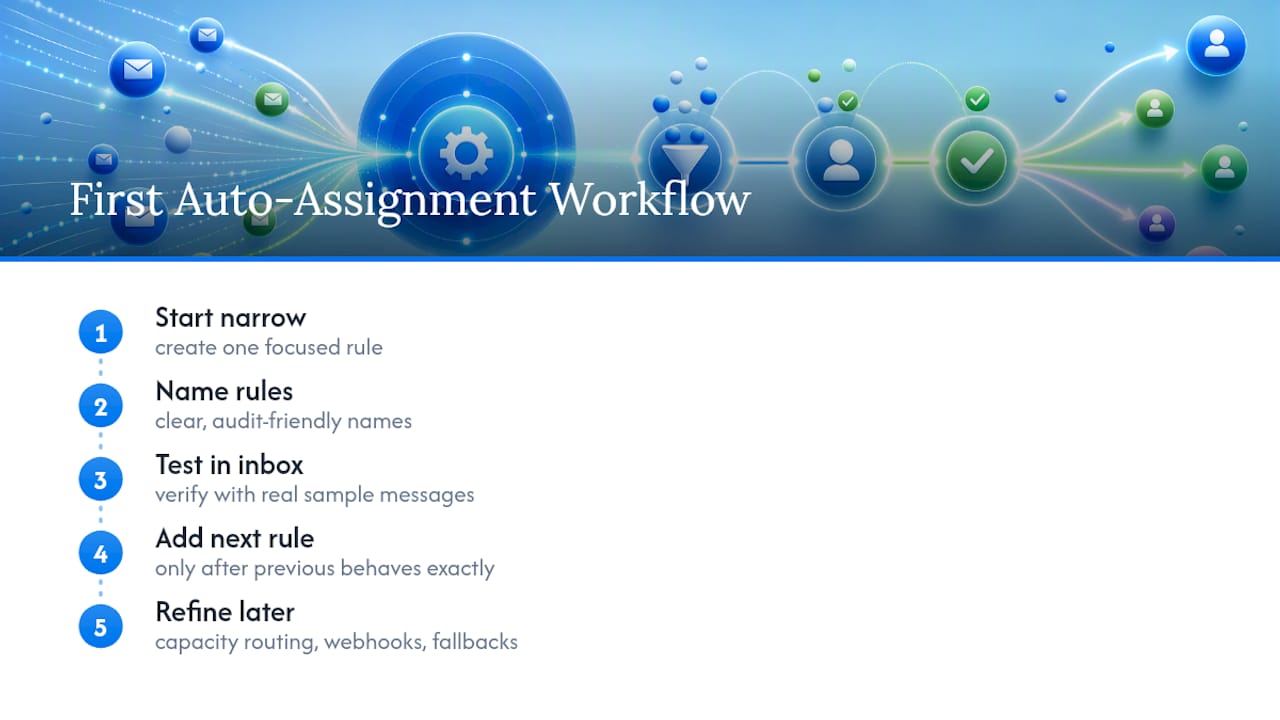
Conventional advice tends to frame this as a tooling decision, pick the right software and you’re done. That’s backwards. The tool matters less than the discipline of testing one rule at a time and naming it so a future audit doesn’t require archaeology. A five-rule system that’s fully understood beats a thirty-rule system nobody can explain.
If you take one thing from this, prioritize the test inbox over the rule count. Build fewer rules, verify each one with real sample messages, and only add the next rule once the last one behaves exactly as expected. Everything else, capacity-aware routing, webhooks, fallback owners, is refinement on top of that foundation, not a substitute for it.
— Nick
Get Auto-Assignment Running Without the DNS Headaches
Some platforms are designed for teams who want rule-based and capacity-aware routing working quickly without long configuration. They connect Gmail or Microsoft 365 inboxes directly, without DNS records or IT tickets, and support assignment rules with multiple teammates and seats.

Once your first rule is live, the routing dashboard shows you exactly where threads land and how long they sit unassigned, so you can catch a misrouted category before it becomes a pattern. If you’re still mapping out ownership across your team, how to assign emails to teammates effectively walks through the handoff patterns that pair well with auto-assignment rules. When you’re ready to test it on your own inbox, start a trial on Sendsync and see how your first rule performs against real messages within the hour.